Tuesday, 26 February 2019

How to Make a Podcast on iPhone 2019


With today's technology, almost anyone can make a podcast. With a little bit of patience and effort, your own podcast can be up and running in no time. Here, you’ll learn how to make podcasts on iPhone.
Before Making a Podcast on iPhone

Picking a topic for your podcast should not be a difficult task. There are many different topics for podcasts including comedy, crime investigations, beauty, entertainment, technology, and more. Pick what interests you and make sure you enjoy discussing it. Making a podcast should be something that is fun, not a chore. Don't be worried about people not being interested in your podcast. Chances are, if you're interested in your topic, there is probably a lot more people that are interested as well.
Popular Apps for Making a Podcast on iPhone
1 How to Make a Podcast on iPhone with Opinion

Opinion allows you to record, edit, and publish your own unique podcast by only using your iPhone. It is simple and easy to use, which would make it great for someone who is just getting started with their podcast. Opinion allows a free ten minutes of recording, however, if you would like an unlimited amount, you can pay $3.99.



Step 1: To start recording a podcast on Opinion, all you have to do is press the record button at the top left part of the screen.Sponsor ads:7 Best iPhone Photo Editor Apps To Achieve Filter and Psychedelic Look

Step 2: After you finish recording, you can edit your podcast using the magnifying glass icon. If you would like to cut a section, move the dotted line to where you would like to cut.
Must Read:If you lost data after you updated to a new iPhone, you can always use Gihosoft iPhone Data Recovery to get the data back from the old iPhone or backup.
Gihosoft Free iPhone Data Recovery:iphonerecovery.com
If you use android phones, please choose Gihosoft Android Data Recovery


Step 3: Then, press the trash icon. You can also move around any of the audio clips by holding down the three-lined icon. When you feel like your podcast is complete, press the share icon at the top right to publish your podcasts.
2 How to Make a Podcast on iPhone with Audioboom

Audioboom is a great app for recording podcasts. Always formerly known as audioBoo. It provides users with a platform to create, edit and share their podcasts.



To make a podcast on Audioboom,

Step 1: Navigate to your dashboard.

Step 2: Tap on Upload/Record. This allows you to either select a previously recorded audio file, or start recording a new one.

Step 3: After you've finished recording your podcast, edit it and choose a title for the podcast, add a description and category. If you chose to, you can also add a picture.

Step 4: After you have added the necessary information, click Publish.

Note

The podcast size limit is 200 minutes per podcast session and 200 MB per file.
3 How to Make a Podcast on iPhone with Podbean

Podbean is an easy-to-use podcast app for iPhone. It has a simple user interface and very basic controls.



To make a podcast on iPhone is very easy, just follow these steps.

Step 1: The first thing you have to do is sign up with your email address, you can also do this with a Facebook account.

Step 2: To start recording your podcast, click on the red microphone button at the bottom left corner of the homepage.

Step 3: Click on the red record button again to start recording your podcast. You can play or pause at any time, if you want to. You can also click on the play button to listen to what you recorded so far or you can click on the delete button to move it to trash.

Step 4: If you want to edit or trim your podcast, click on the scissors icon. When you're done editing, click on the save button to export your podcast and share it.

Note

Note that the maximum recording time for podcasts is 90 minutes.
How to Transfer Your Podcasts to Computer

Sometimes, transferring your podcast from your iPhone to computer can get a little tricky. That's where iMyFone TunesMate comes into play. iMyFone TunesMate is an app that allows the creator to transfer their podcasts from any apple device to their computer. This is an extremely useful app that makes transferring any type of media simple.Sponsor ads:Best Free Video Converter for Windows and Mac

Must Read:If you lost data after you updated to a new iPhone, you can always use Gihosoft iPhone Data Recovery to get the data back from the old iPhone or backup.

Gihosoft Free iPhone Data Recovery:iphonerecovery.com

If you use android phones, please choose Gihosoft Android Data Recovery

iPhone 8 is lagging and freezing when calling, How to Fix? 2019

iPhone 8 is lagging and freezing when calling, How to Fix? 2019
Just Force Restart Your iPhone 8

This is the most direct, and generally the most useful method to solve iPhone issue. There are lots of users telling that their iPhone runs normally when they call again after restarting iPhone 8. So just give it a shot:

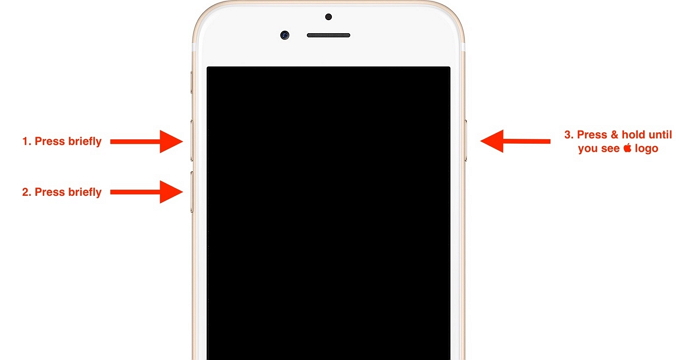
Just press and quickly release the Volume Up button, then press and quickly release the Volume Down button. Finally, press and hold the Power button until you see the Apple logo.


If There Is a New iOS Version, Just Update to It

If there is a common issues on new iPhone device or iOS, apple may also find this problem soon and solve, at least improve it in a new iOS. So if there is prompt of a new iOS update, just do it:

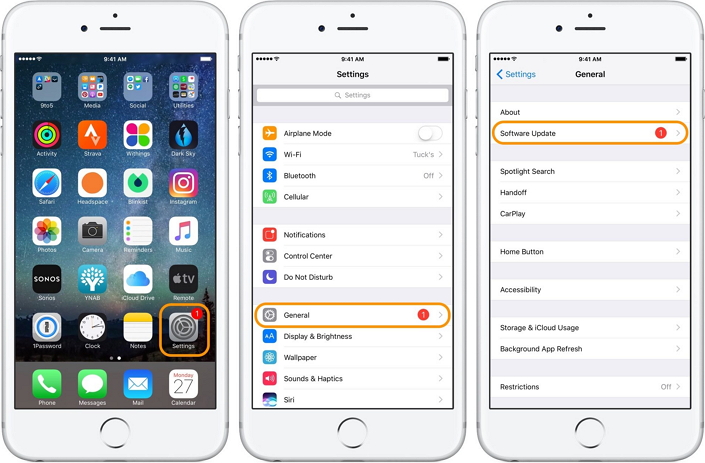
How to Update on iPhone 8 Itself: Go to Settings > General > Software Update, and then tap Download and Install. Then you can just follow the on-screen instructions to finish the rest steps.


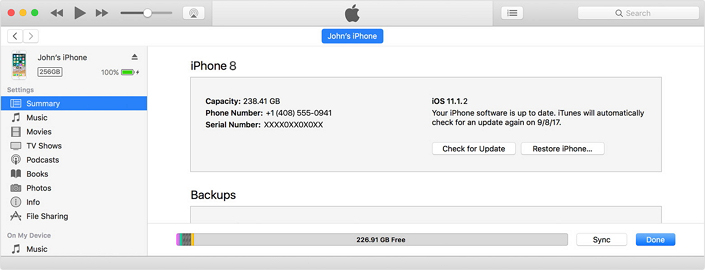
How to Update on iPhone 8 by iTunes: Connect iPhone 8 with iTunes and click Summary > Check for Update. Then Download and Update your iPhone according to the prompts.
Sponsor ads:How to Turn off Tumblr Safe Mode without AccountMust Read:If you lost data after you updated to a new iPhone, you can always use Gihosoft iPhone Data Recovery to get the data back from the old iPhone or backup.
Gihosoft Free iPhone Data Recovery:iphonerecovery.com
If you use android phones, please choose Gihosoft Android Data Recovery

The above two methods are what we have tested useful for iPhone 8 lagging and freezing when calling. We know that there are lots of other method to solve slow iPhone, such as reduce screen motion, close the apps running or stop the auto refresh on background, but I don’t think that’s what users want – when we encounter iPhone issues, we should take action to solve the issue instead of reducing the phone’s function. So there is another useful method you can try to solve iOS issue, including iPhone 8 is lagging and freezing when calling. Read on and check it.Sponsor ads:Fix ios device

Sponsor ads:Android Email Apps
Sponsor ads:The Best Alternative Sites For RARBG 2019 – Still Working Proxy and Mirror Sites

How to Manually Delete Kik Conversations from iPhone 2019


How to Manually Delete Kik Conversations from iPhone

Let’s first look at how to manually delete Kik conversations the “normal” way on your iPhone. Here is what you do:
1. Delete Individual Kik Messages:

Step 1: Open up Kik app on iPhone.

Step 2: Go to the conversation that has the messages that you want to delete.

Step 3: Tap and hold the specific message you want to remove until the option to delete it comes up. Just tap “Delete” to get rid of it.
2. Delete Single Conversation from Kik:

Step 1: In the Kik app, find the chat that you want to delete.

Step 2: Simply swipe it to the left and tap Delete.

Step 3: Tap OK on the “Clear Conversation” confirming window.
3. Delete Kik Conversation History:

Step 1: Open Kik.

Step 2: Go to Settings > Chat Settings.

Step 3: Tap where it says Clear Chat History.


Tips
Are Kik Conversations Gone Forever After You Manually Delete Them?

The short answer is: No! The long answer is that whenever you delete anything on your iPhone that is stored in your phone’s drive (like your Kik conversations), it doesn’t actually get erased. It’s just removed from your view and marked to be overwritten. Until iOS decides to overwrite the addresses in your database that held the conversations, they will still be recoverable using special software.

You don’t even need to be a super hacker or anything to recover the conversations. There is easy to use software out there that will recover data for any determined snoop.

So what can you do? Is there anything you can do to protect your privacy and keep someone from knowing what you were up to? Luckily, yes there is.Sponsor ads:Fix ios device

Sponsor ads:Android Email Apps

Monday, 25 February 2019

How to Access iPhone/iPad Files on PC Using iTunes 2019

How to Access iPhone/iPad Files on PC Using iTunes 2019
1. How to Access iPhone/iPad Files on PC Using iTunes

You can use iTunes to access a limited number of files from some of your apps. To do this, just follow these steps:

Step 1: Open iTunes on your computer and connect your iPhone/iPad.

Step 2: Click on your device tab in iTunes at the upper left corner.

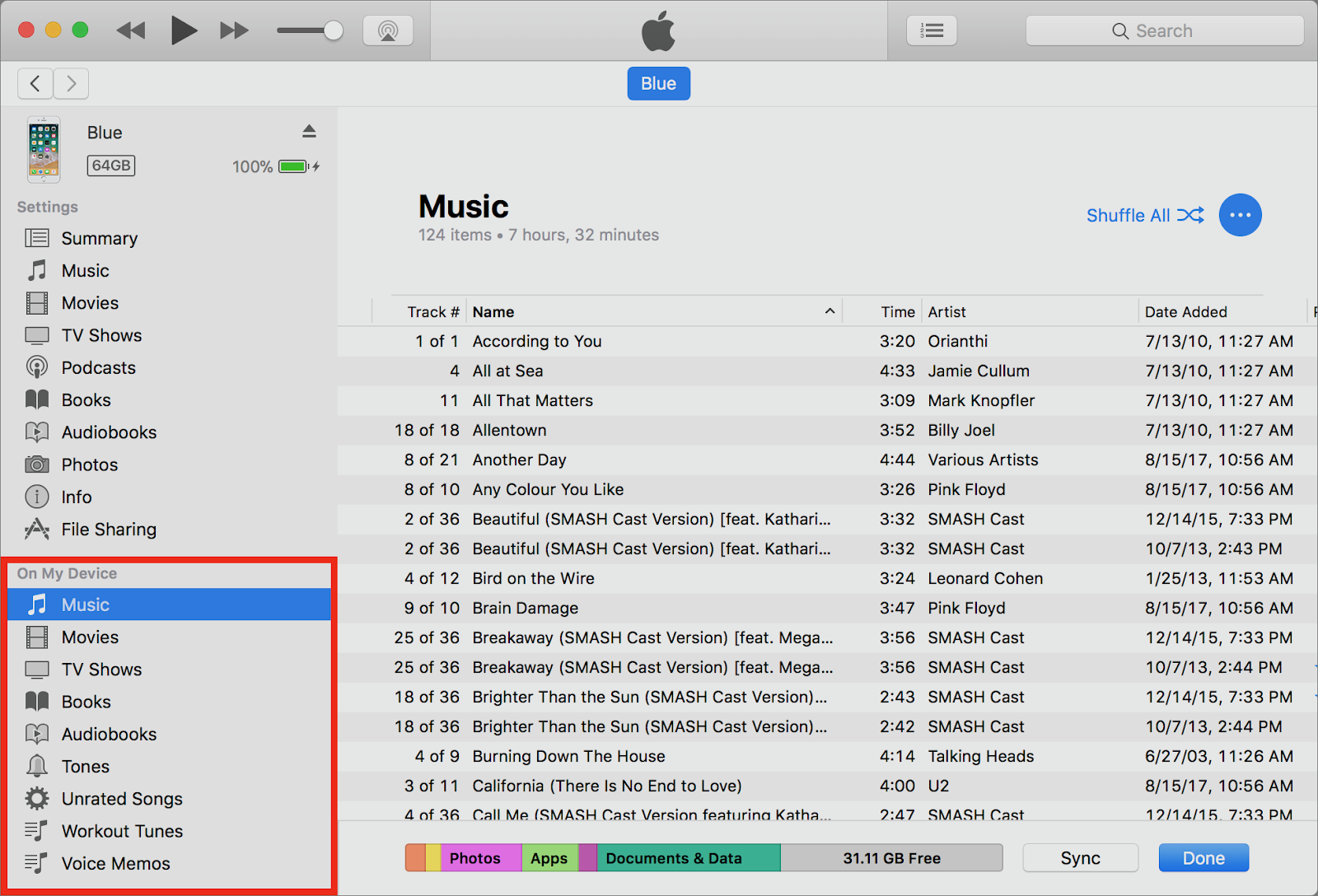
Step 3: On the left side bar, there are some categories under On My Device. You can double click each category to view the files on iPhone.


2. How to Access iPhone/iPad Fies from PC without iTunes

If you’d rather not use iTunes because of its limitations, there are other ways that you can access files from your iOS device on your PC:Also Read:Fix Windows was Unable to Format SD Card/USB Drive


How to open PKPASS files on iPhone, Android, Windows and Mac

Transfer Data from iCloud to New iPhone via Restore 2019


If you've recently purchased a new iPhone X or iPhone 8, your first step to setting up the device for use, is to transfer data from the old device to the new one. One of the ways to do that is via iCloud. If you had set-up automatic backups with iCloud, you have a few iCloud backups that you can use to transfer data to the new device. In this article, we provide you with two ways you can entirely or selectively transfer data from iCloud backup to a new iPhone even it is running iOS 12.
1. Transfer Data from iCloud to New iPhone via Restore

If you have an iCloud backup of the data you want to transfer to a new iPhone, the easiest way to get it there is to restore the iCloud backup on the new device. Follow these simple steps to do it.

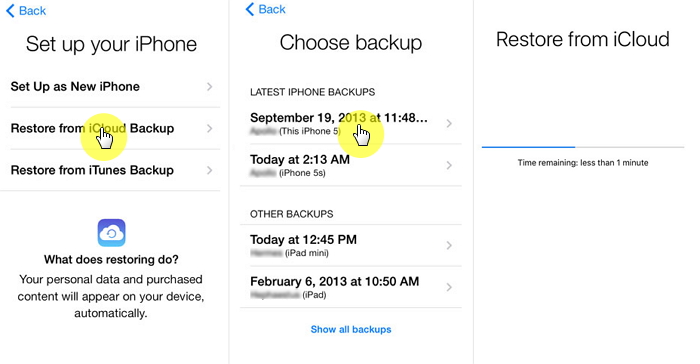
Step 1: If you have yet to set-up the device, when you turn it on you should see the "Hello Screen." If you have already set-up the device, you will need to erase all contents and settings to get to the Hello Screen. To do that go to Settings > General > Reset > Erase all Contents and Settings.
Sponsor ads:


Step 2: Follow the prompts on the Set-Up screen and when you get to the "Apps & Data" screen, select "Restore from iCloud Backup."

Step 3: Sign in to iCloud with your Apple ID and then select the latest backup to begin the restore process. Stay connected as you wait for the backup to be fully restored.


This method only works when you want to restore all the data in that iCloud backup to the iPhone. It may not work for you if you need to restore only some of the data in the backup. It is also likely to take a long time to complete.Sponsor ads:Schedule Text Messages on iPhoneMust Read:If you lost data after you updated to a new iPhone, you can always use Gihosoft iPhone Data Recovery to get the data back from the old iPhone or backup.

Gihosoft Free iPhone Data Recovery:iphonerecovery.com

If you use android phones, please choose Gihosoft Android Data Recovery
3 iPhone Backup Software You Should Know 2019


1. Backup iPhone using CopyTrans

You can also use CopyTrans to backup your iPhone. It has a user-friendly interface which makes it easy for the users to use this program. Although it's an easy to use iPhone backup software, the user is only able to save only 50 contacts for single purchase. You need to purchase for more backup option. With CopyTrans, you can easily organize, delete or edit information.


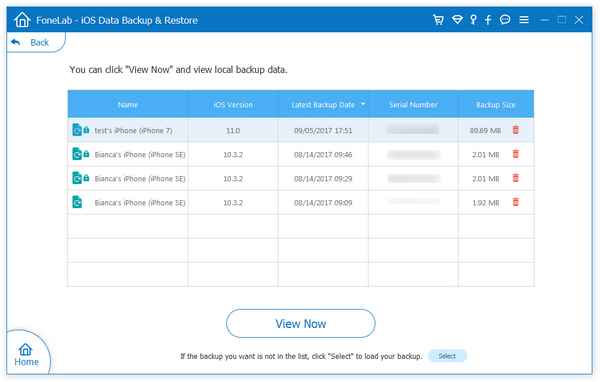
2. Backup iPhone using Aiseesoft Fonelab

Aiseesoft Fonelab is a yet another iPhone backup software which is designed for Mac as well as Windows operating system. A lot of data can be saved with this software that includes your reminders, photo albums, contacts, music and videos. This iPhone backup software is compatible with iOS 9 which makes sometimes unfavorable for the users in this latest iOS version trend.


3. Backup iPhone using dr.fone

Another in the list is dr.fone iOS Data Backup & Restore which is one-click backup and export software. This fully compatible with Windows 10 or Mac 10.11 software works without loss of data. This software is also easy to use and one can use this to backup, export or print their iPhone, iPod or iPad data. Plus, you can preview the backup and restore anytime with the help of this software.Sponsor ads:Schedule Text Messages on iPhoneMust Read:If you lost data after you updated to a new iPhone, you can always use Gihosoft iPhone Data Recovery to get the data back from the old iPhone or backup.

Gihosoft Free iPhone Data Recovery:iphonerecovery.com

If you use android phones, please choose Gihosoft Android Data Recovery


Conclusion

Backing up your iPhone regularly is always the smart move to save your data so that data loss can be made up in future. We introduced different iPhone backup software which no doubt contain different specialties or drawbacks. Go ahead and choose the best iPhone backup software to save your data.

Sunday, 24 February 2019

iPhone 8/iPhone X Do Not Disturb Drivers


The latest version of iPhone 8 is set to be released later in 2017. This version release is supposed to mark the 10th anniversary of iPhone releases since Steve Jobs announced this product from Apple in January 2007.

So many rumors have followed the Prototype release of this version. But we are sure to see a new design and a lot of exciting features to complement the anniversary of one of the most anticipated releases yet from the tech world.

Some of these new features may include an OLED screen for the first time in iPhone products. This OLED display is a feature already used by Samsung. It does not have the curvy screen, however, but still, maintains its straight screen. With the absence of a physical home button and a smaller frontal sensor panel on the prototypes so far, there is going to be more screen. An anticipated 5.8 display screen which is more than the 5.5 in iPhone 7, although the iPhone 8 is expected to be slightly smaller and so on. These features have been met with a lot of mixed reactions though but here is one feature we are excited to see.


The Do Not Disturb Drivers Feature of iOS 11

Craig Federighi has announced a new feature that will be added to the new iPhones. This feature is a ‘Do Not Disturb Driver.' He announced this at the Worldwide developer's conference in San Jose. The feature is to be introduced with the IOS 11 software upgrade.

The function is set to turn on automatically when your phone senses you are driving and mute all notifications. With this feature on, your phone remains dark, saving you the distractions you get when from receiving notifications while driving. You can set it up such that your favorite contacts get an automatic reply saying you will call them back when you reach your destination. You can also allow some contacts get through to you so that you can manage an emergency. Giving some special people allowances to reach you also puts your mind at rest.

The rationale behind this feature is to reduce accidents caused by texting. Even with laws in place prohibiting same, so many accidents are still caused by using phones while driving. This feature promotes responsible use of phones and other devices. The IOS 11 upgrade will surely bring about exciting new things.


Getting a New iPhone 8 or Sticking with an Older version

Every other year means there is an upgrade and new version of iPhones. If you happen to be a device or iPhone enthusiast, you will want to keep up with your favorite device. This helps you stay in trend and get amazing features. So here are some of the things to consider before getting the new iPhone 8.


The size is slightly smaller than the previous version. If you are into big phones, this may be a turn-off. The upside, however, is that it has been rumored to have larger display screen ‘5.8'.


There is a switch from LED screen to OLED screen. OLED screens are better as they light up on their own, they do not require a backlight. This may, however, be a costly feature.


Rumor has it that this version of iPhone may be made of all glass. This was a feature in the older iPhone 4 versions, but users complained about it breaking easily. This version has passed the breakability test supposedly, and as such there may be nothing to worry about. All glass is lovely by the way.


It has also been rumored that there will be a change from Touch ID to Face ID. The non-existent of a physical home button on the prototype makes this rumor somewhat plausible. There is, however, a longer power button that may include Touch ID sensors, so we are not so sure what to expect.

The new design and new features have been met with a lot of mixed reaction. In that case, it may be better to stick with the old versions and at the same time get your hopes up about the new version.

If you have made your mind about getting the new iPhone 8 when it comes out sometime in September, then you need to dispose of your old phone. Whatever steps you take whether donating or selling, data protection should be a concern. Your phone has a lot of personal data stored in the history or cache of the phone. Even when you delete this information, they can be recovered if not completely erased. In other to secure your data and prevent this information getting into the wrong hands, you may want to consider a more permanent solution. Umate pro provides this solution.

Sponsor ads:

Jihosoft iPhone Data Recovery:https://www.jihosoft.com/recovery/ios-data-recovery.html

Jihosoft iPhone Data Recovery

Free iPhone Data Recovery Software for Windows/Mac

Recover up to 12+ types of files, including contacts, SMS, photos, WhatsApp, Viber, notes, etc.

Restore lost data from iOS devices directly or from iTunes and iCloud backup

Recover iPhone data lost due to iOS upgrade/jailbreak, accidental deletion, device lost or broken

Support all the latest iPhone, iPad and iPod Touch.

Tips:

How to transfer messages from iPhone to iPhone

Gihosoft Free iPhone Data Recovery:https://www.gihosoft.com/iphone-data-recovery-free.html

Gihosoft iPhone Data Recovery Free


Umate pro is a device privacy protector that works with Apple devices including iPhones and Mac. It ensures that data is not only erased but remains 100% unrecoverable. Some of the features of this data protector include:


Completing deleting all data on your old phones without any trace that allows for recovering same in any way.


Erasing already deleted IOS data that has left traces for recovery on your device.


Removing third party Applications: Snapchat, WhatsApp, WeChat, Viber etc.


Improving phone performance by deleting junk files allowing it to work as good as new.

Which PC Case Size is Best for Your Next Build?

  Which PC Case Size is Best for Your Next Build?   There are several common PC case sizes to choose from when building your next gaming PC ...